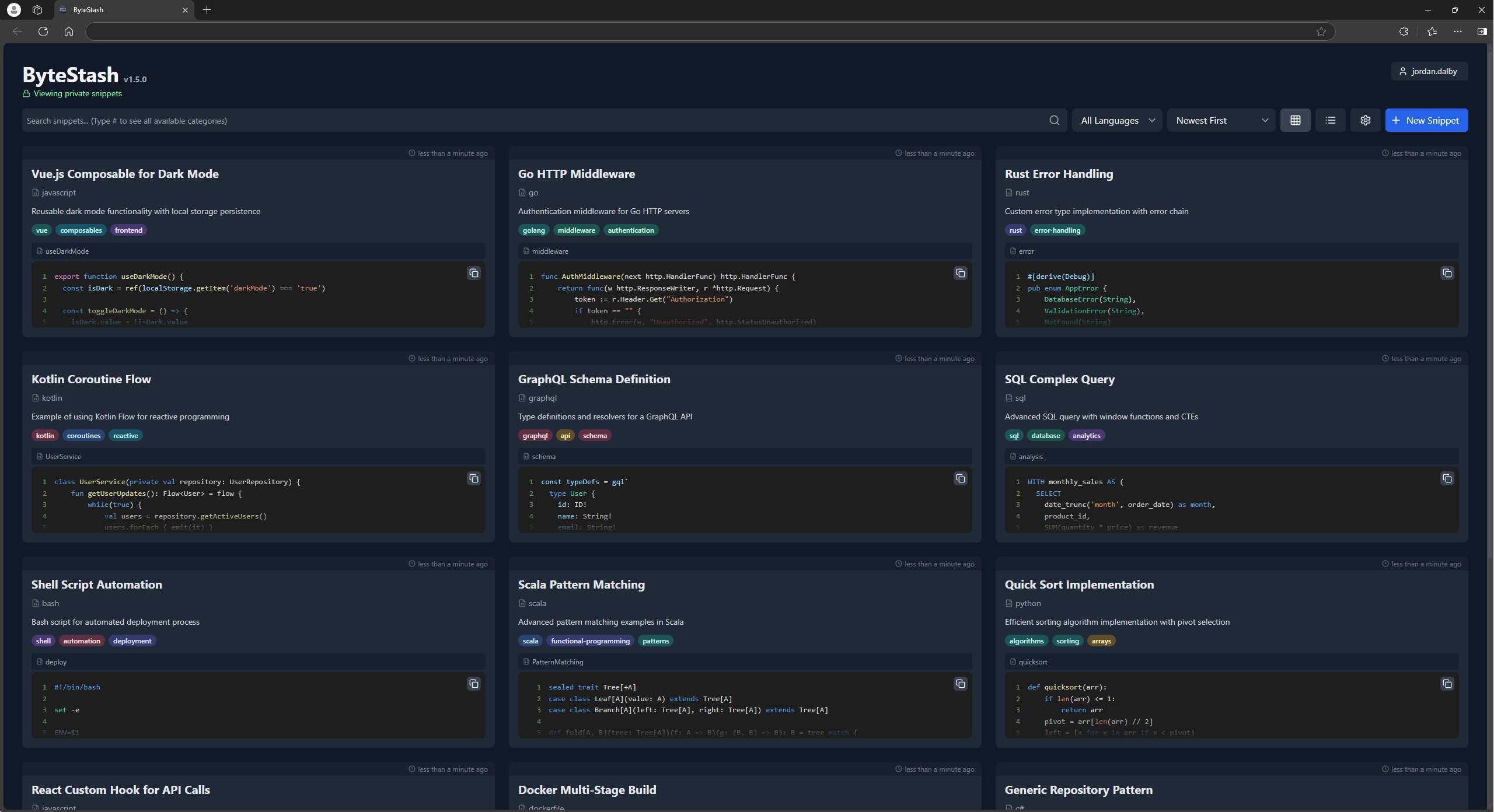
ByteStash is a self-hosted web application designed to store, organise, and manage your code snippets efficiently. With support for creating, editing, and filtering snippets, ByteStash helps you keep track of your code in one secure place.
Check out the ByteStash demo powered by PikaPods!
Username: demo
Password: demodemo
- Create and Edit Snippets: Easily add new code snippets or update existing ones with an intuitive interface.
- Filter by Language and Content: Quickly find the right snippet by filtering based on programming language or keywords in the content.
- Secure Storage: All snippets are securely stored in a sqlite database, ensuring your code remains safe and accessible only to you.
ByteStash is now on the Unraid App Store! Install it from there.
Also available on PikaPods for 1-click install from $1/month.
ByteStash can also be hosted manually via the docker-compose file:
services:
  bytestash:
    image: "ghcr.io/jordan-dalby/bytestash:latest"
    restart: always
    volumes:
      - /your/snippet/path:/data/snippets
    ports:
      - "5000:5000"
    environment:
      # See https://github.com/jordan-dalby/ByteStash/wiki/FAQ#environment-variables
      #ALLOWED_HOSTS: localhost,my.domain.com,my.domain.net
      BASE_PATH: ""
      JWT_SECRET: your-secret
      TOKEN_EXPIRY: 24h
      ALLOW_NEW_ACCOUNTS: "true"
      DEBUG: "true"
      DISABLE_ACCOUNTS: "false"
      DISABLE_INTERNAL_ACCOUNTS: "false"

      # See https://github.com/jordan-dalby/ByteStash/wiki/Single-Sign%E2%80%90on-Setup for more info
      OIDC_ENABLED: "false"
      OIDC_DISPLAY_NAME: ""
      OIDC_ISSUER_URL: ""
      OIDC_CLIENT_ID: ""
      OIDC_CLIENT_SECRET: ""
OIDC_SCOPES: ""- Frontend: React, Tailwind CSS
- Backend: Node.js, Express
- Containerisation: Docker
Once the server is running you can explore the API via Swagger UI. Open
/api-docs in your browser to view the documentation for all endpoints.
Contributions are welcome! Please submit a pull request or open an issue for any improvements or bug fixes.
To add phrases for a new language, follow these steps. Example for fr locale:
- Add the locale name to the
Localeenum in theclient/src/i18n/types.tsfile - Add the locale name to the
localesarray in theclient/i18next.config.tsfile - Run translation synchronization:
cd client && npm run i18n:extract - Replace all
__TRANSLATE_ME__lines with the desired phrases - Create new resources file as
client/src/i18n/resources/fr.ts - Update export resources in file
client/src/i18n/resources/index.ts - Run the server in development mode:
npm run dev - Run the client in development mode:
cd client && npm run start


