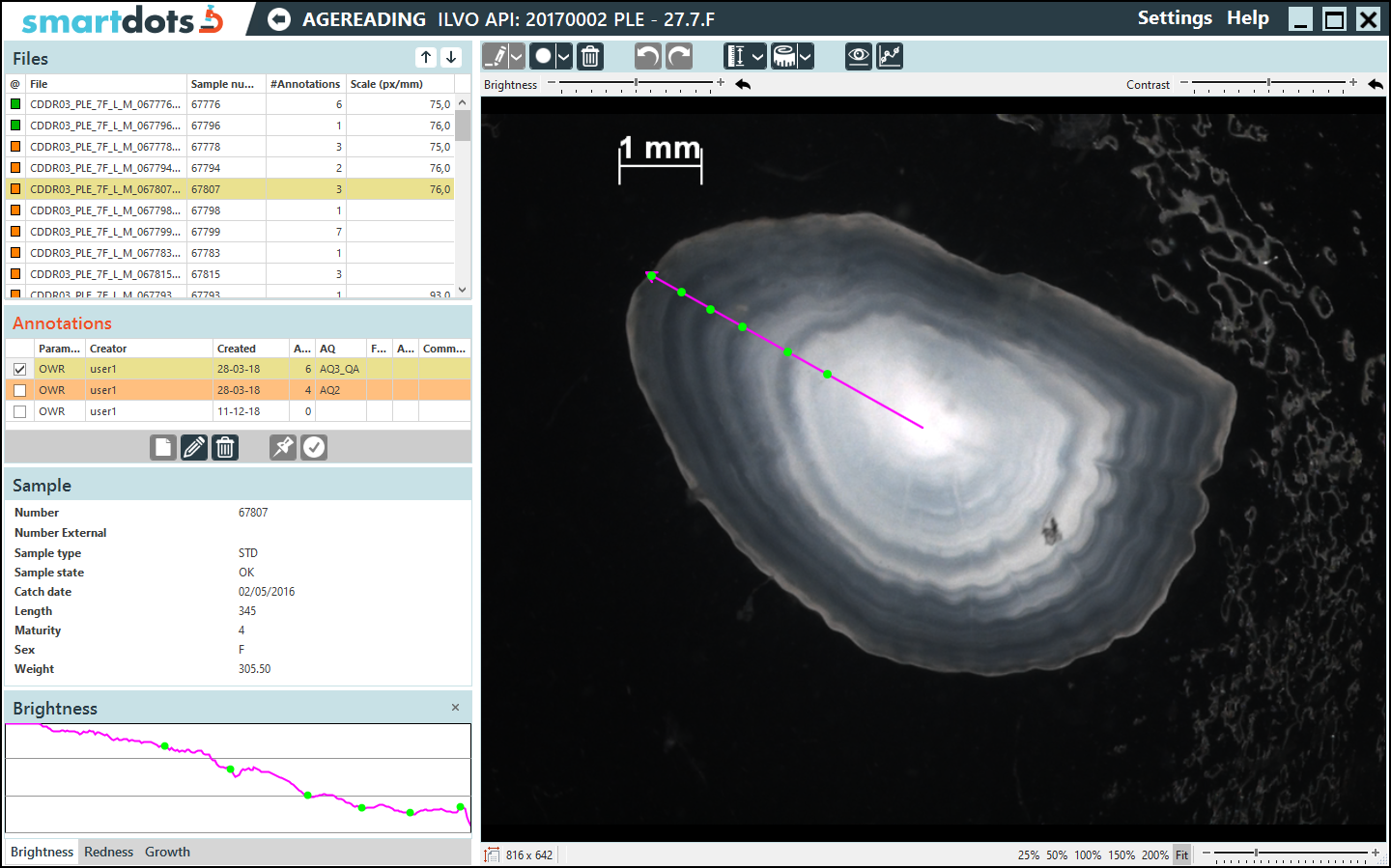
SmartDots is the otolith reading software developed by ILVO in collaboration with ICES, used for annotating biological parameters such as fish age in workshops and exchanges.
- Developed by: ILVO (Flanders Research Institute for Agriculture, Fisheries and Food)
- Collaborator: International Council for the Exploration of the Sea (ICES)
- Version: 4.1.0.3
- First deployment date: 2017-11-07
- Last update date: 2025-05-15
- Platform: Windows
- Release artifacts:
- Installer: setup.exe
- Portable version: SmartDots4.1.zip (zip containing batch-run executable)
- Dependencies:
- Requires .NET framework
- Connection to a Web API
- Development: DevExpress WPF UI Library
- .gitattributes, .gitignore, LICENSE, README.md, SmartDots.sln, changelog.md
- SmartDots/publish/setup.exe (installer)
- SmartDots/Portable/SmartDots4.1.zip (portable release)
- Code signing certificate: Certum EV Code Signing
There are two ways to get started with SmartDots:
This is the recommended way to use SmartDots. This version will install on your PC and it will automatically check for updates.
You can download the installer here: https://github.com/ices-eg/SmartDots/raw/master/SmartDots/publish/setup.exe
Note: A firewall or antivirus may block the application. If you are experiencing these issues please use the portable version.
Use this option when you are experiencing firewall/antivirus issues. This version will not have these issues, however it will also not check for updates. When you want to update to the latest version, you will have to download it again.
You can download the portable version here: https://github.com/ices-eg/SmartDots/raw/master/SmartDots/Portable/SmartDots4.1.zip
- Download the .zip-file
- Unzip to a location of choice
- Double-click SmartDots(.bat) to run the application
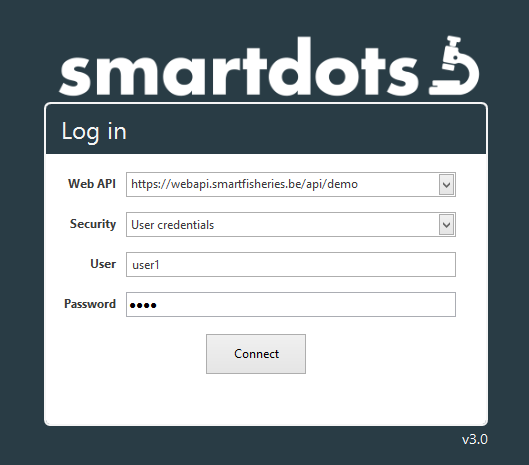
You can try out the features of SmartDots in a demo environment.
Use the following settings:
- Web API: https://webapi.smartfisheries.be/api/demo
- Security: User credentials
- User: userX (Where X is any number from 0-30. Example: user4)
- Password: pwdX (Where X is the same number used for the user. Example: pwd4)
Press connect
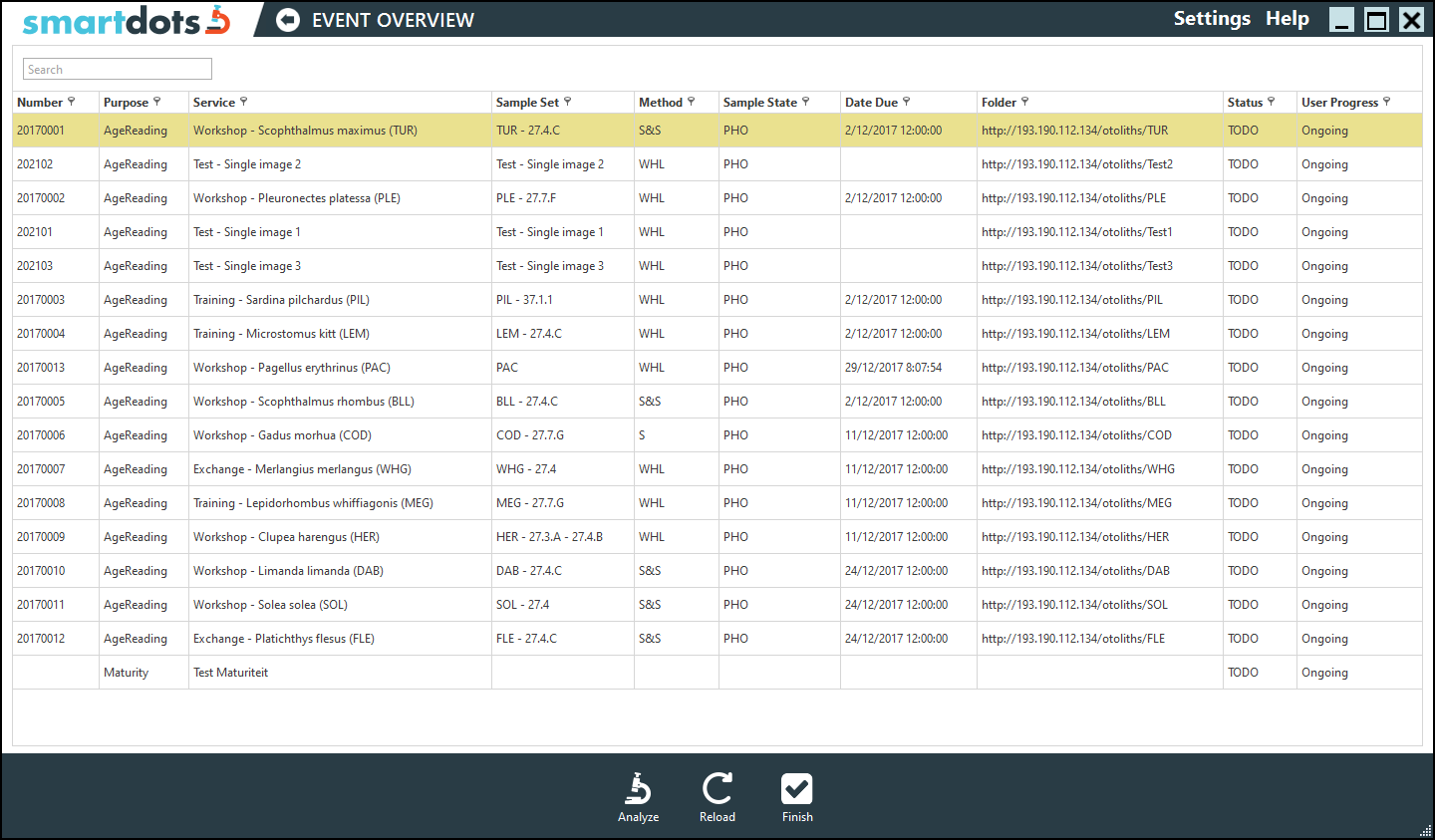
If authentication succeeded, you will see a list of Analyses/Activities/Events. Double-Click on a event row (or select a row and press Analyze at the bottom) to go to the Age Reading module
Select a sample and start annotation otholiths