| 【EN】 | 〖RU〗 |
|---|

PyPNM is a pure Python module for
-
reading PPM and PGM image files (both 8 and 16 bits per channel color depth) to image 3D nested integer lists for further editing/processing;
-
displaying 3D nested lists thus obtained by converting to Tkinter-compatible data in memory, and subsequent
-
writing edited image 3D nested lists to disk as PPM or PGM files, either binary or ASCII.
PPM (Portable Pixel Map) and PGM (Portable Gray Map) (particular cases of PNM format group) are simplest file formats for RGB and L images, correspondingly. As usual for this decaying Universe, this simplicity lead to some adverse consequences:
-
lack of strict official specification. Instead, you may find words like "usual" in format description. Surely, there is always someone who implement this part of image format in unprohibited, yet a totally unusual way.
-
unwillingness of many software developers to provide any good support for simple and open format. It took years for almighty Adobe Photoshop developers to include PNM module in distribution rather than count on third-party developers, and surely (see above) they took their chance to implement a header scheme nobody else uses.
What as to PNM support in Python, say, Pillow, it normally is rather incomplete or completely missing when it comes to 16 bits per channel modes, and requires special measures when some limited support exist.
As a result, novice Python user (like me) may find it difficult to get reliable and robust input/output modules for PPM and PGM image formats.
-
Obtaining suitable facility for visualization of image-like data (images first and foremost), existing in form of 3D nested lists, via Tkinter
PhotoImage(data=...)method. -
Obtaining simple and compact cross-platform module for reading PPM and PGM files as 3D nested lists for further processing with Python, and subsequent writing of processed 3D nested lists data to PPM or PGM files.
To accomplish this, current PyPNM module was developed, combining input/output functions for 8-bits and 16-bits per channel binary and ASCII Portable Gray Map and Portable Pixel Map files, i.e. P2, P5, P3 and P6 PNM file types.
All color depth ranges supported directly, without limitations and without dancing with tambourine and proclaiming it to be a novel method.
Current PyPNM module read and write capabilities are briefly summarized below.
| Image format | File format | Read | Write |
|---|---|---|---|
| 16 bits per channel RGB | P6 Binary PPM | ✅ | ✅ |
| 16 bits per channel RGB | P3 ASCII PPM | ✅ | ✅ |
| 8 bits per channel RGB | P6 Binary PPM | ✅ | ✅ |
| 8 bits per channel RGB | P3 ASCII PPM | ✅ | ✅ |
| 16 bits per channel L | P5 Binary PGM | ✅ | ✅ |
| 16 bits per channel L | P2 ASCII PGM | ✅ | ✅ |
| 8 bits per channel L | P5 Binary PGM | ✅ | ✅ |
| 8 bits per channel L | P2 ASCII PGM | ✅ | ✅ |
| 1 bit ink on/off | P4 Binary PBM | ✅ | ❌ |
| 1 bit ink on/off | P1 ASCII PBM | ✅ | ❌ |
Current version of PyPNM is intended to be used with Python 3.11 and above. However, there is also a Python 3.4 compatible PyPNM version, proven to work with Python 3.4 under Windows XP 32-bit.
Main goal of module under discussion is not just bytes reading and writing but representing image as some logically organized structure for further image editing.
Is seems logical to represent an RGB image as nested 3D structure - (X, Y)-sized matrix of three-component RGB vectors. Since in Python list seem to be about the only variant for mutable structures like that, it is suitable to represent image as list(list(list(int))) structure. Therefore, it would be convenient to have module read/write image data from/to such a structure.
Note that for L images memory structure is still list(list(list(int))), with innermost list having only one component, thus enabling further image editing with the same nested Y, X, Z loop regardless of color mode.
Note that since main PyPNM purpose is facilitating image editing, when reading 1-bit PBM files into image this module promotes data to 8-bit L, inverting values and multiplying by 255, so that source 1 (ink on) is changed to 0 (black), and source 0 (ink off) is changed to 255 (white) - since any palette-based images, 1-bit included, are next to useless for general image processing (try to imagine 1-bit Gaussian blur, for example), and have to be converted to smooth color for that, conversion is performed by PyPNM automatically.
In case of installing from PyPI via pip:
python -m pip install --upgrade PyPNMSince version 2.26.23.23 recommended import is:
import pypnmthen use functions as described in section "Functions description", or just take a look at "Usage example" section below.
Note that legacy import schemes like
from pypnm import pnmlpnmare still working.
Below is a minimal Python program, illustrating all PyPNM functions at once: reading PPM file (small collection of compatibility testing samples is included into current Git repository) to image nested list, writing image list to disk as binary PPM, writing image list as ASCII PPM, and displaying image list using Tkinter:
#!/usr/bin/env python3

from tkinter import Button, PhotoImage, Tk

from pypnm import list2bin, list2pnm, pnm2list

X, Y, Z, maxcolors, image3D = pnm2list('example.ppm')  # Open "example.ppm"
list2pnm('binary.ppm', image3D, maxcolors, bin=True)  # Save as binary pnm
list2pnm('ascii.ppm', image3D, maxcolors, bin=False)  # Save as ascii pnm

main_window = Tk()
main_window.title('PyPNM demo')
preview_data = list2bin(image3D, maxcolors)  # Image list 🡢 preview bytes
preview = PhotoImage(data=preview_data)  # Preview bytes 🡢 PhotoImage object
preview_button = Button(main_window, text='Example\n(click to exit)', image=preview,
    compound='top', command=lambda: main_window.destroy())  # Showing PhotoImage
preview_button.pack()
main_window.mainloop()
With a fistful of code for widgets and events this simplistic program may be easily turned into a rather functional application (see Viewer.py below).
PyPNM module contains 100% pure Python implementation of everything one may need to read and write a variety of PGM and PPM files, as well as to display corresponding image data. No non-standard dependencies used, no extra downloads needed, no dependency version conflicts expected. All the functionality is provided as functions/procedures, as simple as possible; main functions are listed below:
- pnm2list - reading binary or ASCII RGB PPM or L PGM file and returning image data as nested list of int.
- list2bin - getting image data as nested list of int and creating binary PPM (P6) or PGM (P5) data structure in memory. Suitable for generating data to display with Tkinter.
- list2pnm - getting image data as nested list of int and writing either binary or ASCII file depending on
binargument.
Detailed functions arguments description is provided below, as well as in module docstrings and PyPNM documentation bedside book (PDF).
X, Y, Z, maxcolors, image3D = pypnm.pnm2list(in_filename)Read data from PPM/PGM file to nested image data list, where:
X, Y, Z- image sizes (int);maxcolors- number of colors per channel for current image (int);image3D- image pixel data as list(list(list(int)));in_filename- PPM/PGM file name (str).
image_bytes = pypnm.list2bin(image3D, maxcolors, show_chessboard)Convert nested image data list to PGM P5 or PPM P6 (binary) data structure in memory, where:
-
image3D-Y * X * Zlist (image) of lists (rows) of lists (pixels) of ints (channels); -
maxcolors- number of colors per channel for current image (int); -
show_chessboard- optional bool, setTrueto show LA and RGBA images against chessboard pattern;Falseor missing show existing L or RGB data for transparent areas as opaque.Default is
Falsefor backward compatibility; -
image_bytes- PNM-structured binary data.
image_bytes object thus obtained is well compatible with Tkinter PhotoImage(data=...) method and therefore may be used to (and actually was developed for) visualize any data represented as image-like 3D list.
When encountering image list with 2 or 4 channels, current version of list2bin may treat it as LA or RGBA image correspondingly, and generate image preview for Tkinter as transparent over chessboard background (like Photoshop or GIMP). Since PNM images do not have transparency, this preview is actually either L or RGB, with image mixed with chessboard background, generated by list2bin on the fly (pattern settings match Photoshop "Light Medium" defaults). This behaviour is controlled by show_chessboard option. Default setting is False (meaning simply skipping alpha channel) for backward compatibility.
pypnm.list2pnm(out_filename, image3D, maxcolors, bin)Write either binary or ASCII file from nested image data list, where:
-
image3D-Y * X * Zlist (image) of lists (rows) of lists (pixels) of ints (channels); -
maxcolors- number of colors per channel for current image (int); -
bin- switch (bool) defining whether to write binary file or ASCII.Default is
True, meaning binary output, to provide backward compatibility. -
out_filename- Name of PNM file to be written.
Note that list2pnm is a switch between list2pnmbin and list2pnmascii, whose direct usage is considered legacy. Using list2pnm instead of legacy calls simplifies writing "Save as..." functions for main programs - now you can use one function for all PNM flavours. Default is bin = True since binary PNM seem to be more convenient for big programs like Photoshop.
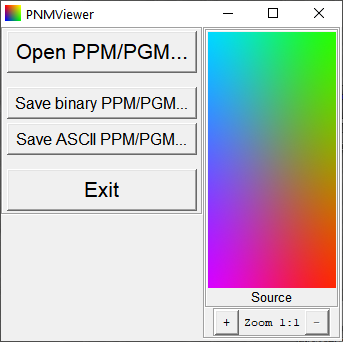
Program viewer.py is a small illustrative utility: using PyPNM package, it reads different flavours of PGM and PPM files, and allows saving them as different types of PGM/PNM, i.e. it can read ASCII PPM and write it as binary PPM or vs. Also this program shows images using PyPNM and Tkinter. No, there is no mistake: it does not feed PPM files to Tkinter directly. Instead, it uses nested 3D list data loaded using PyPNM to generate in-memory bytes object of PPM structure using preview_data = pypnm.list2bin(image3D, maxcolors), and then feeds this in-memory bytes object to Tkinter as preview = PhotoImage(data=preview_data) (note using data=, not file=). This way it displays, for example, ASCII PPM which Tkinter itself cannot handle.
| Fig. 1. Example of ASCII PPM opened in Viewer.py |
|---|
 |
Beside having simple yet fully functional GUI with mouse events handling a-la Photoshop, viewer.py is also capable to process command line arguments like
python viewer.py filename.ppmfor opening files. In theory, you may even register it as system viewer for PPM, PGM and PBM files, and become the first person in this planet using pure Python system-registered image viewer.
Note
Since Viewer version 2.21.22.23 "Export via Tkinter..." option added to main menu, allowing to export opened image using Tkinter native PhotoImage.write method. This option added mostly to illustrate Tkinter limitations. For example, 16 bit per channel images, saved this way, become 8 bpc due to Tkinter internal limitations.
Using PyPNM and Tkinter you may easily visualize any data that can be represented as greyscale or RGB images (images first and foremost), without large external packages and writing files on disk.
PyPNM provides easy reading and writing PPM and PGM files in both 8 bit per channel and 16 bit per channel color depths, as well as reading 1 bit per channel PBM files.
Nested list data structures used by PyPNM are well suited for arbitrary color mode image processing using nested loop/map.
-
Netpbm file formats specifications strictly followed in the course of PyPNM development.
-
PyPNM at PyPI - installing PyPN with
pip. Does not contain viewer example etc., only core converter module, but provides regularpip-driven automated updates. -
PyPNM at Github containing both PyPNM module and example viewer application, illustrating using
list2binto produce data for TkinterPhotoImage(data=...)to display, as well as opening/saving various portable map formats. -
PyPNM ver *.34 at Github - same as [3] above, but compatible with Python 3.4.
-
PyPNM docs (PDF). While current documentation was written for 9 May 2025 "Victory" version, it remains valid for 2 Sep 2025 "Victory II" release since the latter involves total inner optimization without changing input/output format.
PixelArtScaling - usage example, pure Python implementation of Scale2x, Scale3x, Scale2xSFX and Scale3xSFX image rescaling methods. Since ScaleNx methods are based on whole pixel comparison, image representation as nested list, provided by PyPNM, perfectly fits ScaleNx module algorithm. In main programs PNG I/O is based on PyPNG, on-screen preview and PPM/PGM I/O - on PyPNM, thus making entire project pure Python and therefore cross-platform.
Averager, non-standard adaptive image average filtering application, written entirely in Python.
| Fig. 2. Pure Python image filtering application, largely based on PyPNM |
|---|
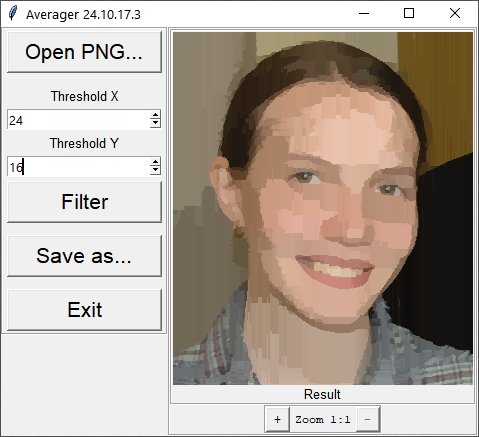 |
Filter before/after preview based on PyPNM list2bin code and Tkinter PhotoImage(data=...) class. Filtering itself largely utilize the fact that nested lists, produced by PyPNM, may be easily processed with one-loop-fits-all algorithms regardless of color mode. As a result, fully operational pure Python interactive image filtering application ensued.
imin Bilinear and barycentric image interpolation module, written entirely in Python. Sample applications are largely based on PyPNM.
| Fig. 3. Pure Python image displacing/distorting application, largely based on PyPNM |
|---|
 |
As with "Averager" above, the module itself utilizes the fact that pixels represented as nested lists, produced by PyPNM, are easy to process using the same map() for any color mode.
Dnyarri website - more Python freeware for image processing, 3D, and batch automation by the same author.